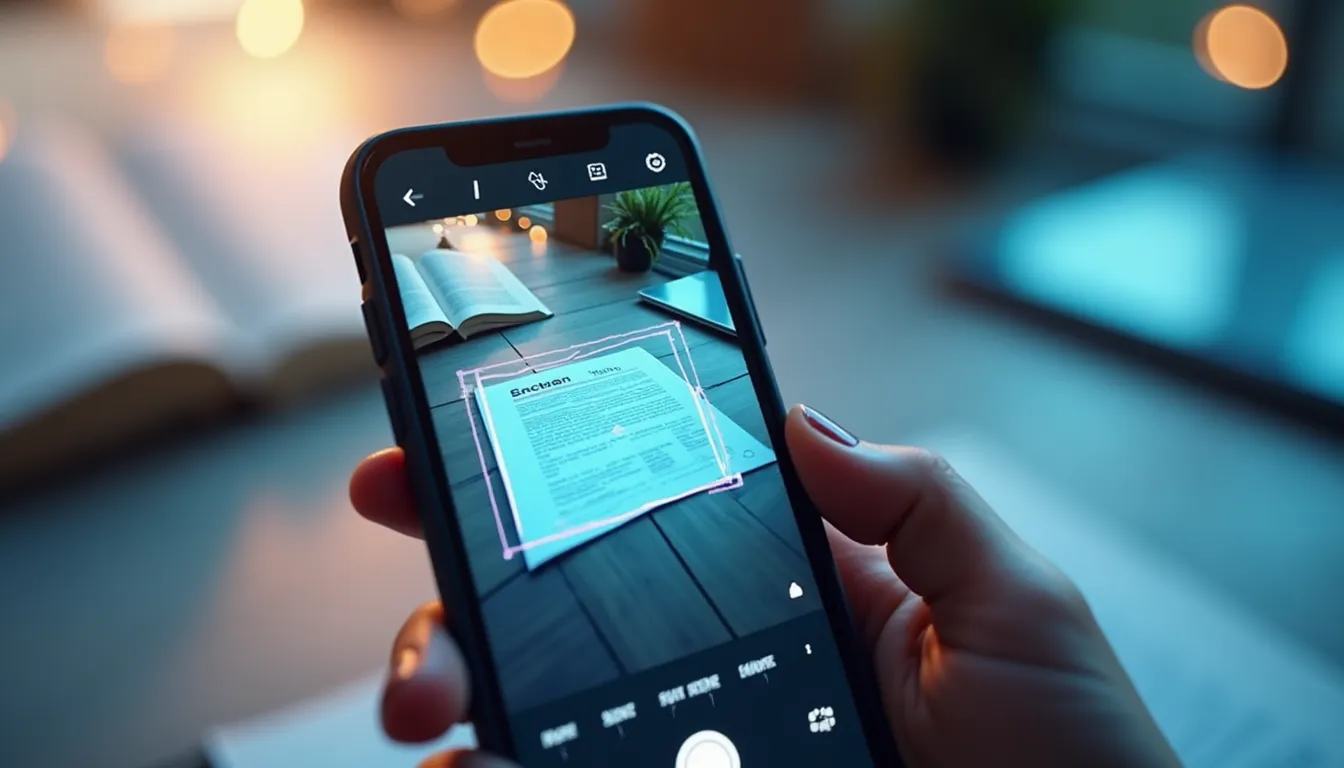
I watched my dad photograph a document, email it as a JPG, and wonder why it looked terrible.
“My phone camera is great,” he said. “Why does this look so bad?”
Because a photo isn’t a scan.
The Difference
A photo:
- Captures whatever’s in frame
- Includes perspective distortion
- Has uneven lighting
- Results in huge file sizes
- Creates an image, not a document
A proper scan:
- Detects document edges
- Corrects perspective automatically
- Evens out lighting
- Optimizes file size
- Creates a proper PDF
You have a powerful computer in your pocket. Use software that uses it properly.
What Good Scanner Apps Do
Auto edge detection
Point at a document. The app detects its edges. No manual cropping.
If you’re adjusting corners manually every time, your app sucks.
Perspective correction
Document at an angle? Good apps flatten it automatically. The result looks like it went through a flatbed scanner.
Enhancement
Removes shadows. Balances lighting. Whitens paper. Sharpens text.
Bad lighting in the room doesn’t matter when software compensates.
OCR (Optical Character Recognition)
The text in your scan becomes actual text you can search and copy.
Scan a receipt. Search “coffee” six months later. Find it.
PDF output
Documents should be PDFs. Not JPGs. PDFs are universal, compact, and preservable.
How to Get Good Scans
1. Good lighting helps
Even though apps compensate, starting with decent lighting makes everything better.
Natural light is best. Avoid shadows falling across the document.
2. Steady hand
Move too fast and blur ruins everything. Hold still for a second while the app captures.
3. Fill the frame
Get close enough that the document fills most of the screen. More pixels on the document = sharper text.
4. Avoid glare
Glossy documents under bright lights create white spots that can’t be fixed. Angle to avoid direct reflections.
5. Let the app work
Don’t manually override edge detection unless it’s actually wrong. Trust the software — it’s usually right.
The Upgrades Nobody Uses
Multi-page documents
Scan all pages. Combine into one PDF. Most people don’t realize their scanner app does this.
Batch mode
Some apps let you scan page after page continuously. Way faster than individual captures.
Cloud sync
Scans can auto-upload to iCloud, Dropbox, or Google Drive. Never lose a document.
OCR search
Your scanned documents become searchable. This alone is worth using a real scanner app.
The App
I built ScanSnap because existing scanner apps either had too many features or too many ads.
AI edge detection. Automatic perspective correction. OCR for handwriting. One-tap to scan.
Your phone is a scanner. Treat it like one.
— Dolce
Comments
Comments powered by Giscus. Sign in with GitHub to comment.